
Three-model Windows 10 troubleshooting
Fix the first failed stage.
Start with USB detection, verify the exact driver, then move to enrollment and sign-in.
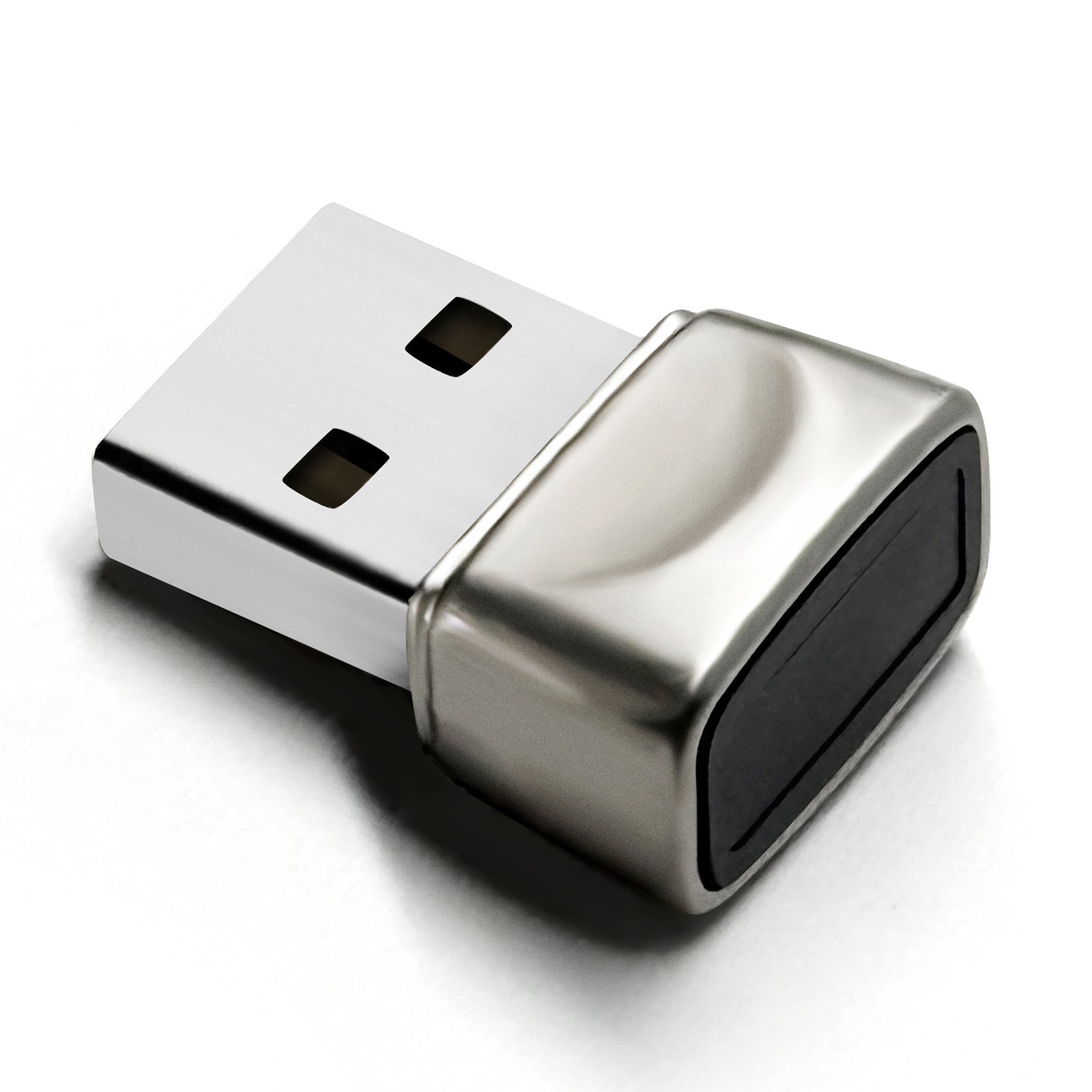
- 1Connect
- 2Detect
- 3Enroll
- 4Sign in
Select the first thing that is not working.
Fix the earliest failed stage first. A later symptom can be caused by an earlier connection or driver problem.
Clear Device Manager before enrollment.
All three current samples reached a working Biometric device before Windows Hello setup. Only DP-200 started from a documented code 28 state; DP-100 and DP-100LK reused the driver already installed on the test computer.
- Connect directly
Use a native USB-A port. Remove an unconfirmed adapter or hub from the test.
- Wait and inspect
Allow Windows to finish device setup. If code 28 appears, open Details and record the Hardware Ids value.
- Match the exact sample ID
All three tested samples used
USB\VID_2541&PID_0236. Stop if the ID differs. - Use Windows Update first
If automatic search fails for the exact ID, use the matching Microsoft Update Catalog result or request model-specific support. Do not assume clean first-install behavior from the DP-100/DP-100LK test.
- Verify the result
Continue only when ChipSailing Fingerprint UsbDriver appears under Biometric devices with no warning and problem code 0.
Confirm detection before changing sign-in settings.
A detected reader can still be affected by Windows configuration or organization policy.
- Confirm the device appears
Return to the detection path if the reader is missing or marked with an error in Device Manager.
- Open the correct path
Go to Settings, Accounts, Sign-in options, then Fingerprint recognition (Windows Hello).
- Review Additional settings
Some Windows 11 configurations use Enhanced Sign-in Security controls for external fingerprint readers.
- Respect managed-device policy
Do not change organization-controlled sign-in or security settings without approval from the computer administrator.
Improve the scan before replacing the driver.
Recognition quality can depend on sensor condition and how the finger is presented.
- Clean and dry
Make sure the sensor and finger are clean and dry before trying again.
- Vary finger placement
Follow the Windows prompts and present different parts and angles of the same finger.
- Try another finger
Use Add a finger after completing the first enrollment, or test a different finger if enrollment repeatedly stops.
- Re-register when needed
Remove the incomplete enrollment through Sign-in options, then start the Windows Hello enrollment again.
Keep account access while testing the fingerprint.
Use the Windows PIN or password first if fingerprint recognition does not work.
- Use backup sign-in
Select Sign-in options on the lock screen and use the PIN or password to access Windows.
- Confirm the enrolled finger
Test the finger that completed enrollment and keep it centered on the sensor.
- Add or re-register a finger
Return to Fingerprint recognition in Sign-in options and use Add a finger or enroll again.
- Test recovery states
After the initial sign-in works, test a direct reconnect, restart and sleep/resume while keeping the PIN available.
- Record the exact message
Save the Windows error text if recognition repeatedly fails after re-enrollment.
Check the exact model and the function being used.
The three current samples reported the same fingerprint ID, but the test computer already had the driver installed before DP-100 and DP-100LK were connected.
- Confirm the label
Record the exact model, packaging label and any Hardware Ids shown by Windows.
- Use Windows Update first
Continue only when the exact hardware ID matches and Device Manager returns a working device.
- Check the DP-100LK USB tree
The tested sample exposed an internal hub, fingerprint sensor and HID composite device. Record which component has the warning.
- Use the documented button action
One short press locks Windows on DP-100LK. No other button action is advertised.
- Request model support
Send the model, Windows build and Device Manager details without sending a password, PIN or fingerprint image.
Tested driver boundary
From an exact hardware match to a working sign-in.
All three current samples used USB\VID_2541&PID_0236 and ChipSailing 18.28.18.814 on Windows 10 Pro build 19045. On a new computer, confirm the exact hardware ID and use Windows Update or the official driver setup path.
- 1Connect directly
Use a native USB-A port and let Windows search automatically.
- 2Verify the ID
Check Hardware Ids before any manual driver action.
- 3Install the exact match
The current samples used ChipSailing 18.28.18.814; do not force it onto a different hardware ID.
- 4Confirm code 0
Device Manager must show a working Biometric device without a warning.
- 5Enroll and test
Complete Windows Hello, keep the PIN and test reconnect, restart and sleep.
Use Windows Update first. The Catalog link is for the exact tested-sample hardware ID, and its valid driver signature is not Microsoft product certification.
Low-risk baseline
Use the same safe baseline for every path.
These checks preserve account access and avoid introducing a second problem while diagnosing the first.
Adapter use is not confirmed for the launch models.
Do not remove the only working sign-in method.
The current samples reported USB\VID_2541&PID_0236; a different ID requires separate support.
Organization policy can control Windows Hello and external biometrics.
Use the Windows controls that match the symptom.
These references come from Microsoft. They explain Windows behavior but do not certify a Dovryx product.
Clean the reader, use another finger, re-register or add a fingerprint.
Microsoft Support DriversRecommended and optional updatesReview how Windows Update delivers hardware driver updates.
Microsoft Support Windows 11Enhanced Sign-in SecurityUnderstand how Windows version and ESS capability affect external biometric devices.
Microsoft LearnPrepare useful details before requesting support.
A complete report reduces repeated questions and helps separate a connection problem from a Windows configuration problem.
Do not send your Windows password, PIN, account recovery codes, private files or fingerprint images.
Stop before a low-risk check becomes a system change.
If the next step would change the registry, BIOS or organization policy, stop and request approved model-specific support.