
Windows does not detect the reader
Reconnect to a native USB-A port, review Device Manager and complete Windows Update.
Three-model Windows 10 tested setup
Choose the model in front of you, confirm the exact USB device and driver, then enroll through Windows Hello.
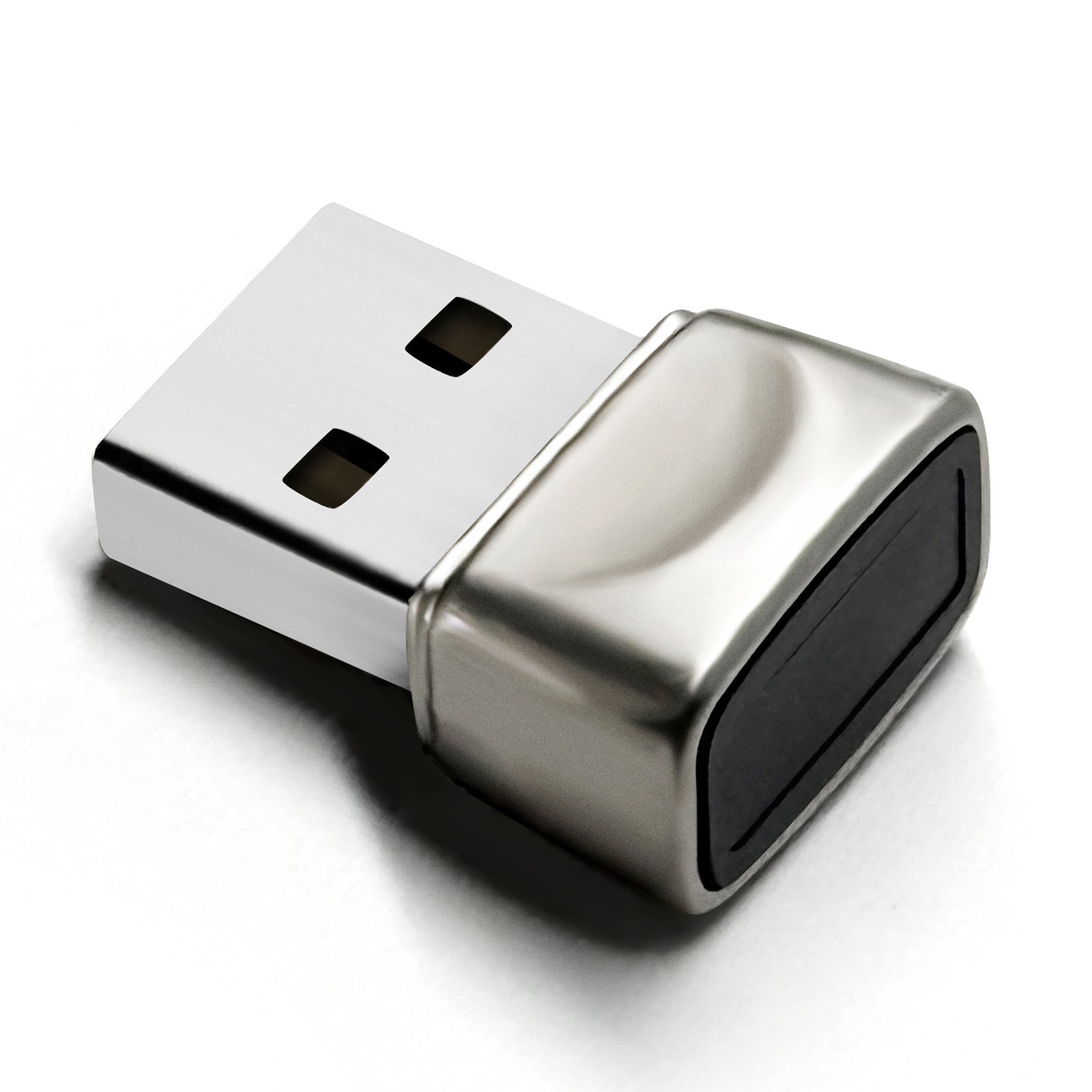
All three current samples completed the Windows 10 functional path. DP-100 and DP-100LK were tested after the ChipSailing driver was already installed, so their clean first-install behavior remains unverified.
Use a native USB-A port. The completed Windows 10 test covered automatic driver installation, enrollment, sign-in, restart, S3 sleep and two physical ports.
View DP-200 details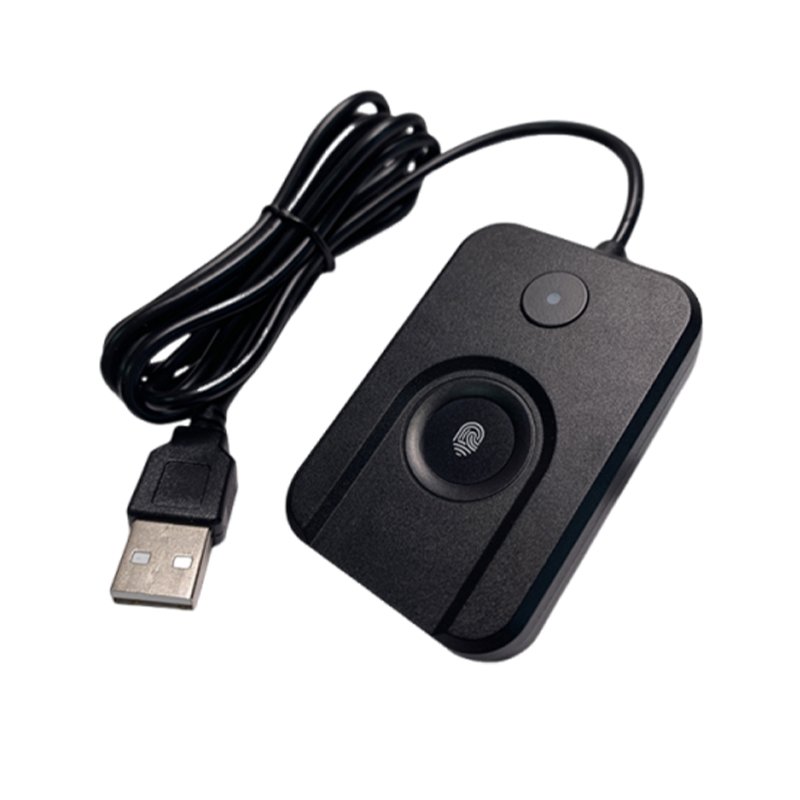
The current Windows 10 sample completed enrollment, sign-in, reconnect, restart, a short S3 transition and two native USB-A ports. A new computer may need Windows Update or the official driver setup path.
View DP-100 details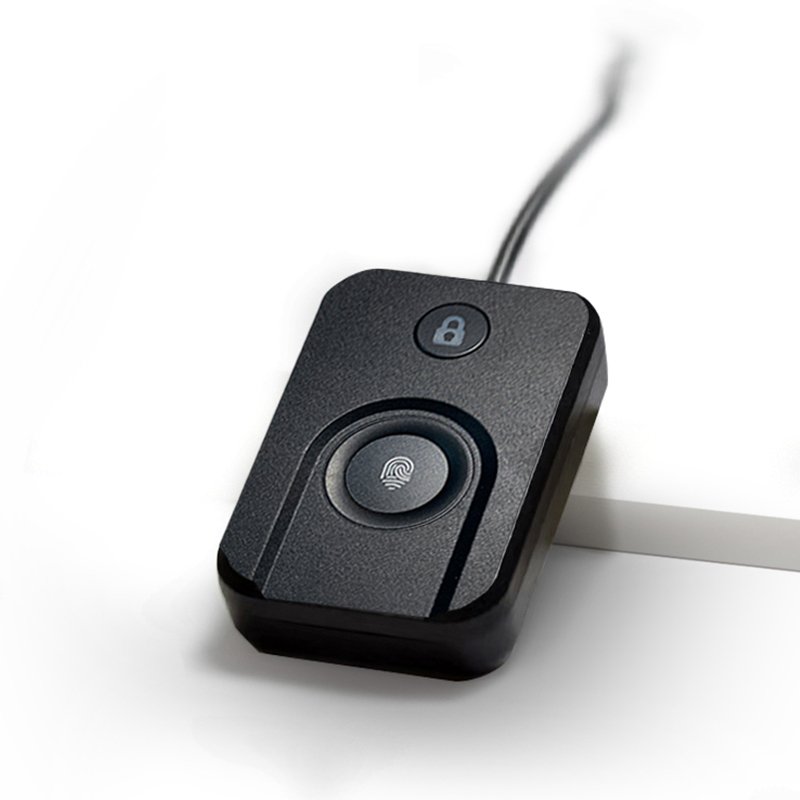
The current Windows 10 sample completed the same sign-in and recovery checks. Use one short button press to lock Windows; no other button action is advertised.
View DP-100LK detailsTested-sample driver boundary
All three current samples reported hardware ID USB\VID_2541&PID_0236. Stop if Device Manager shows a different ID or a device warning.
Connect the selected model directly, wait for device setup and use Windows Update before downloading a separate package.
In Device Manager, open Properties, Details and Hardware Ids. The tested samples showed USB\VID_2541&PID_0236; a different ID requires separate support.
The current samples used ChipSailing 18.28.18.814. DP-100 and DP-100LK reused the package already installed on the test computer, so clean first-install behavior is not confirmed.
Continue only when Device Manager shows ChipSailing Fingerprint UsbDriver without a warning and problem code 0.
Confirm the hardware ID before use. A valid hardware compatibility signature is not Microsoft certification or endorsement of any Dovryx model.
Menu names can differ slightly between Windows versions. On all three completed Windows 10 sample tests, enrollment started only after Device Manager showed a working Biometric device.
Use a native USB-A port and verify the working Biometric device before opening Windows Hello.
Go to Settings, choose Accounts, then open Sign-in options.
Expand Fingerprint recognition (Windows Hello), select Set up, then choose Get started.
Enter the requested password or PIN. Windows may ask you to create a PIN as a backup sign-in method.
Touch or move your finger as Windows prompts. Repeat until the enrollment process is complete.
Lock Windows, confirm the enrolled finger works and keep the PIN available. A second finger remains an additional recommended test.
Each current sample signed in after initial enrollment, reconnection, restart, a short S3 transition and changing to another native USB-A port. Repeat these checks on the computer that will use the reader.
Do not repeat every step. Start with the first condition that does not match your screen.
Reconnect to a native USB-A port, review Device Manager and complete Windows Update.
Confirm device detection. Organization policies or Windows 11 external biometric settings may also affect availability.
Clean and dry the finger and sensor, vary finger placement, then try adding a different finger.
This guide covers Windows Hello fingerprint sign-in for the launch models. It does not turn them into biometric security keys.
Hong Kong Aidodo Technology Co., LimitedBusiness Registration No. 80876471
Hong Kong company secretary correspondence addressRoom 1214, 12/F, Star House, 3 Salisbury Road, Tsim Sha Tsui, Hong Kong
Operating and return addressRoom 409, Building 3, Yanghang Building, Dalingshan Town, Dongguan, Guangdong, China
Customer service+86 181 2652 8757 · support@dovryx.com
Monday-Friday, 9:00 a.m.-5:00 p.m., China Standard Time (UTC+8)